
What Clients and Guests See in Workflow
When you invite clients or guests to review your work in Workflow, they experience a simplified, intuitive interface designed specifically for feedback—not project management. This makes it easy for anyone to leave comments and review your work, even if they've never used Workflow before.
Guests only see the specific project you invite them to. They won't see your other projects, workspace settings, or team management features.
What Guests See When They First Access a Project
When a guest clicks their invitation link, they'll log in with Google or email (creating an account if they're new). They'll land directly on the project you invited them to, with a clean interface focused entirely on the creative work.
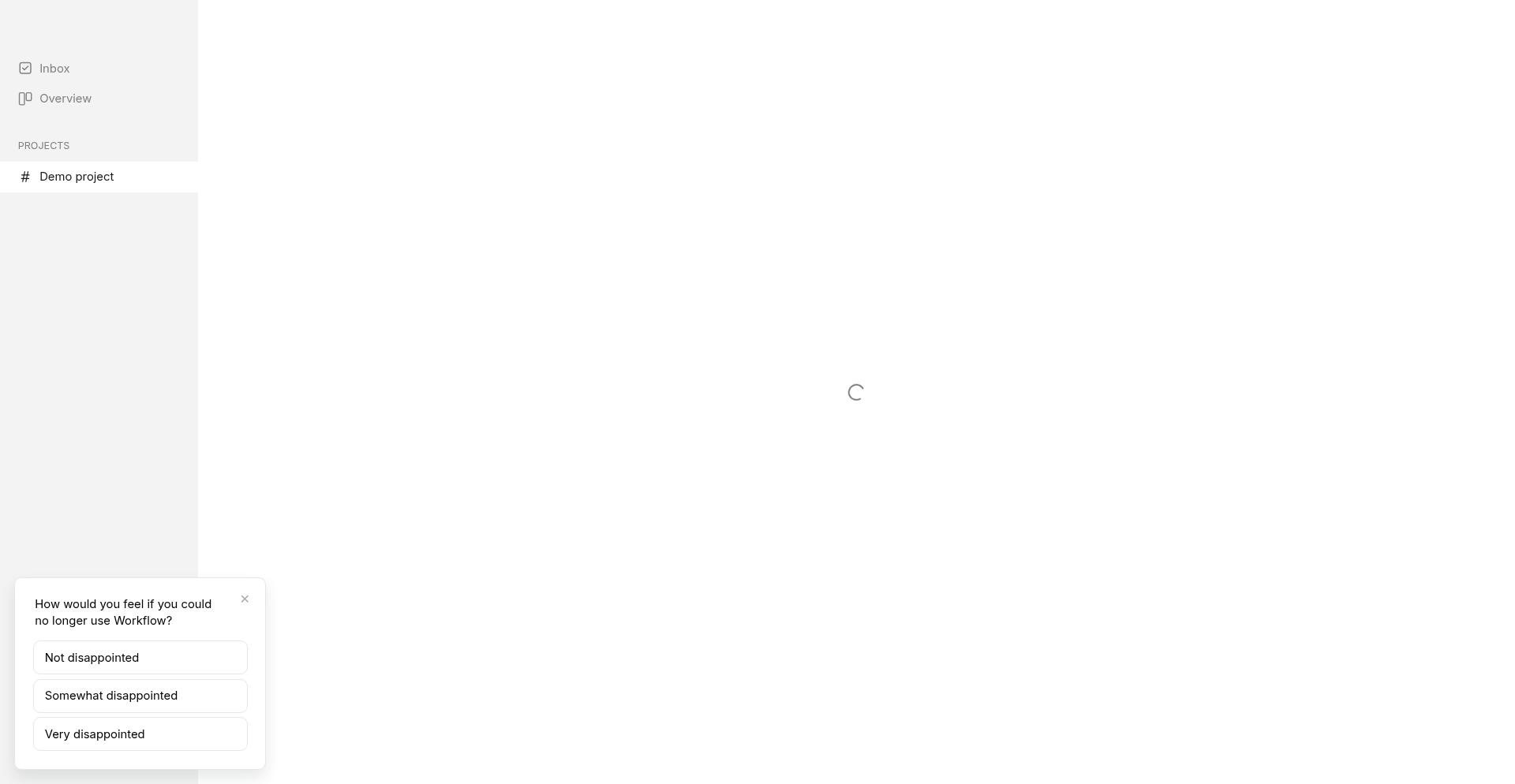
The Guided Tour for First-Time Users
First-time guests see a short guided tour that shows them the three essential features they need:
1. Click Anywhere to Leave a Comment
The tour highlights the Comment mode, showing guests they can click directly on the creative work to leave feedback at specific locations.
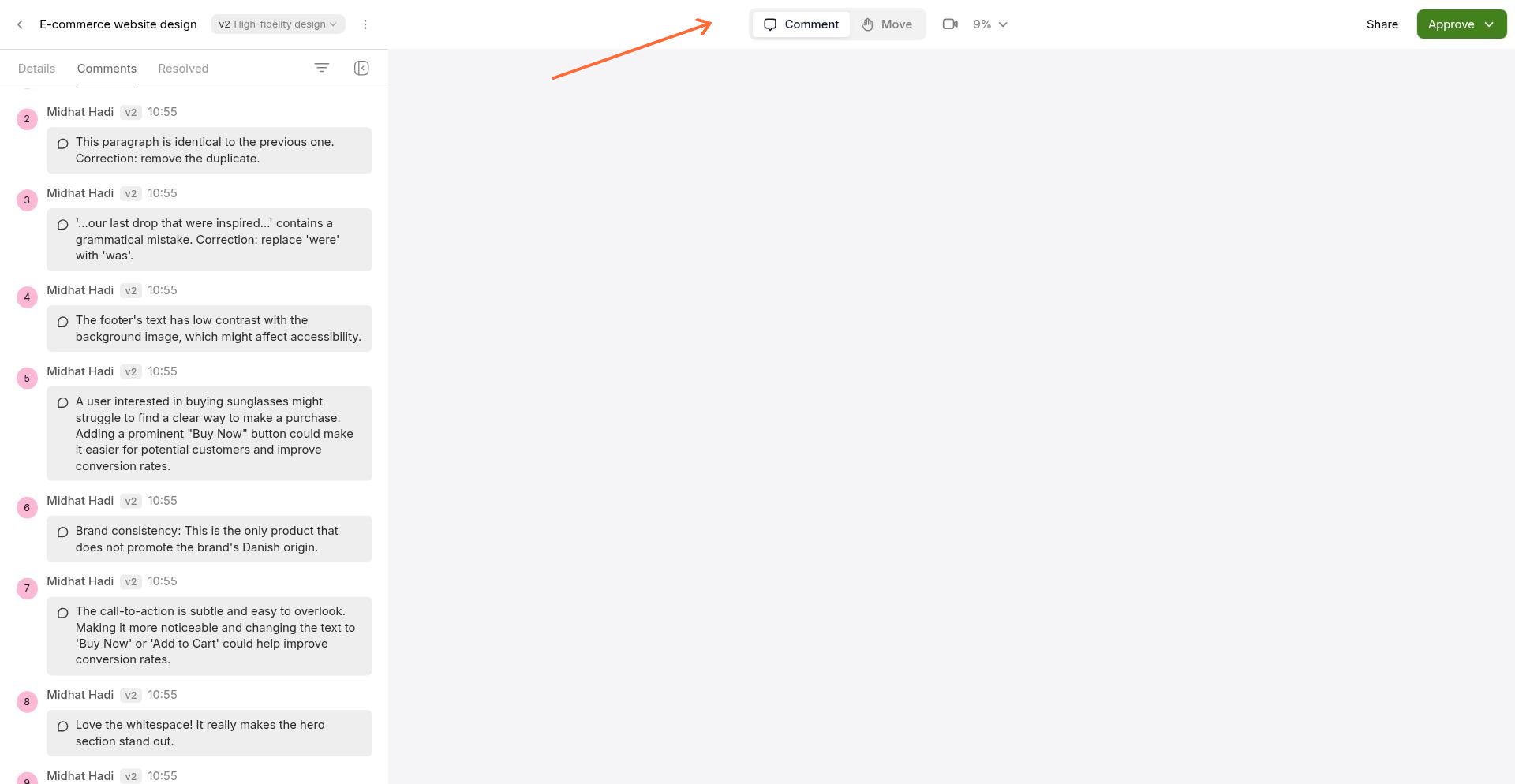
2. Record Screen and Voice Feedback
Guests can leave video walkthroughs if you've enabled this feature in your workspace settings. The tour points out the video recording button in the top toolbar.
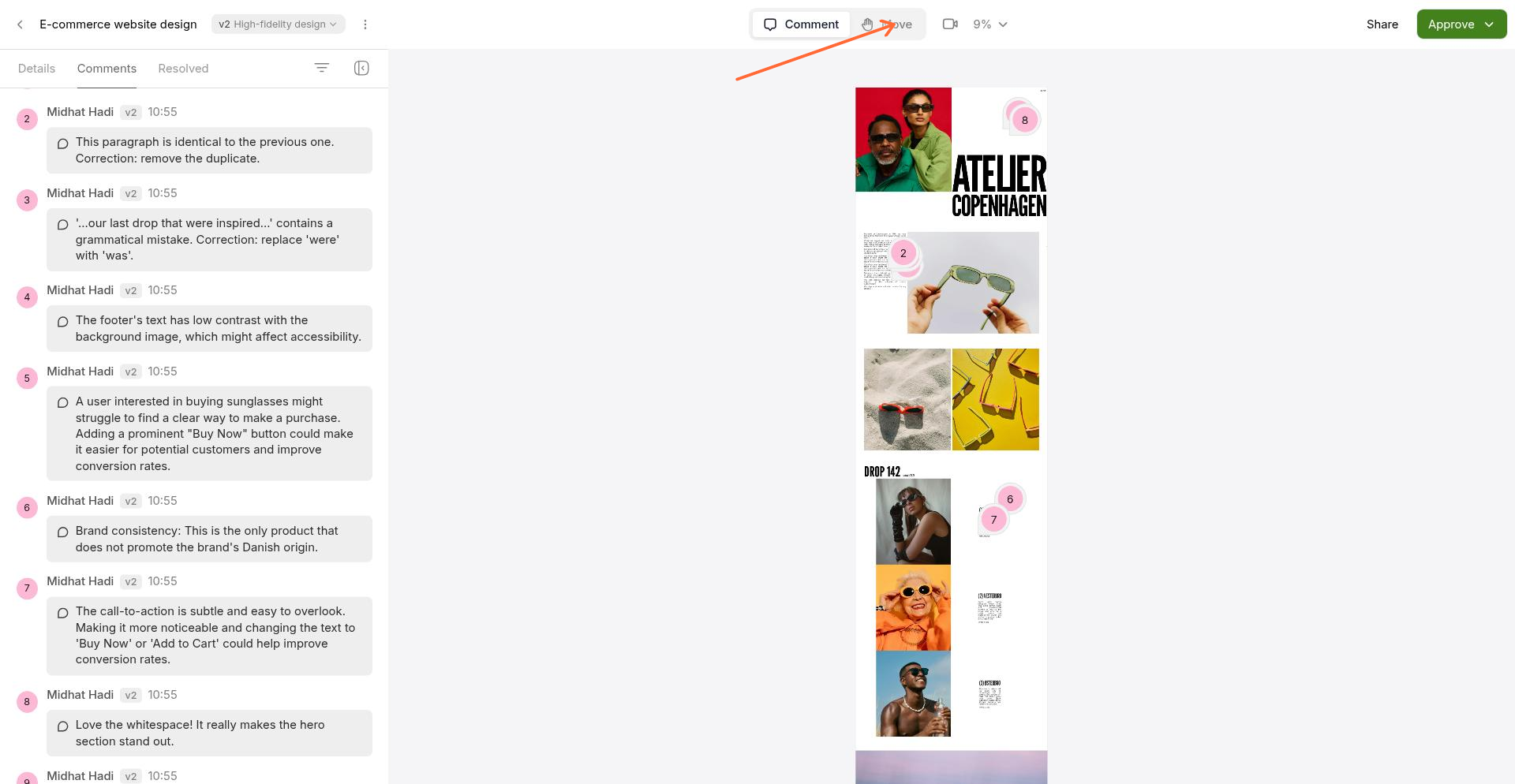
Learn how to enable guest video feedback in your workspace settings.
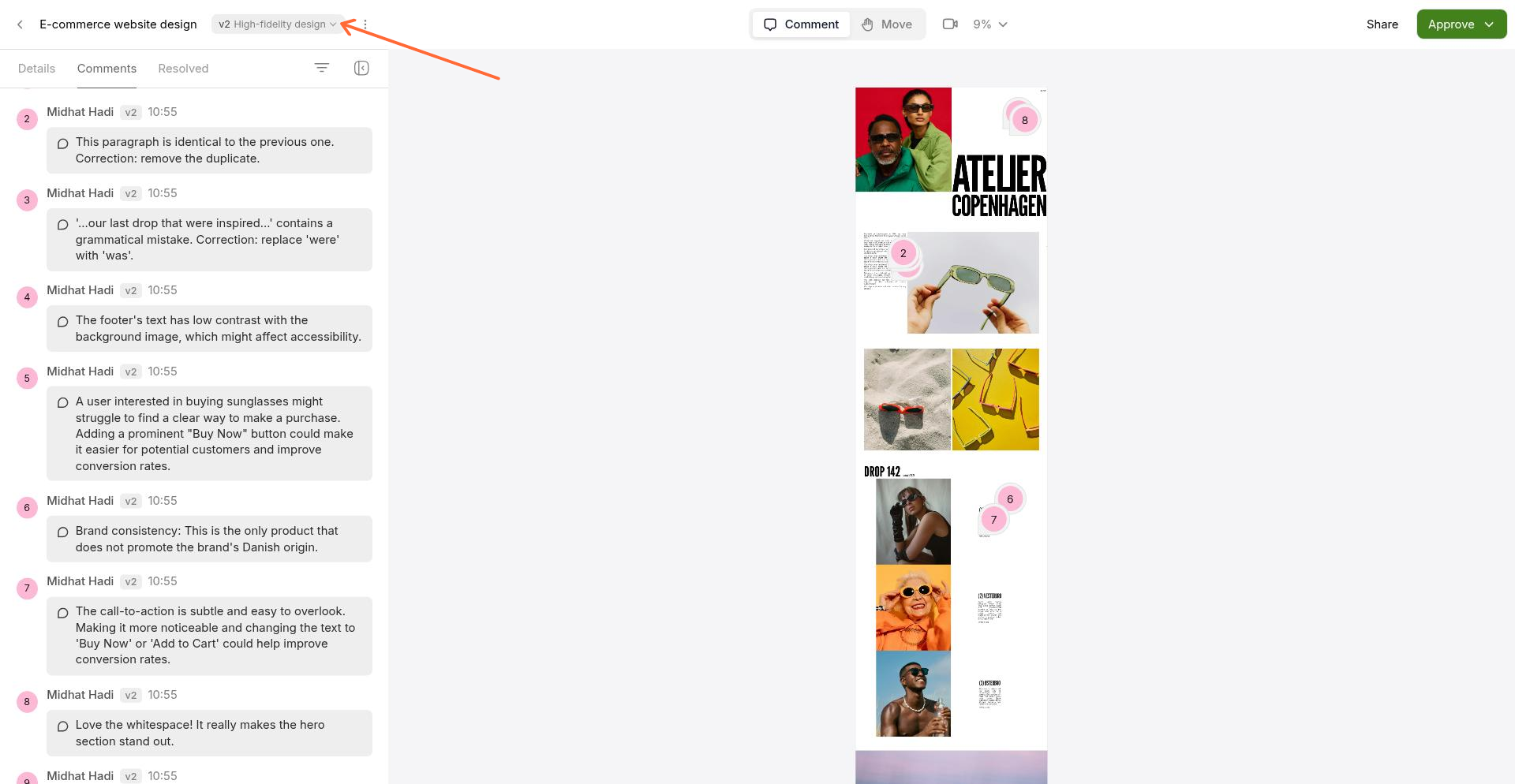
3. View Previous Versions
The version selector lets guests navigate through different iterations of your work and see how the project has evolved.
The Guest Interface
The guest interface is intentionally minimal, focusing attention on the creative work with just the controls needed for navigation and feedback.
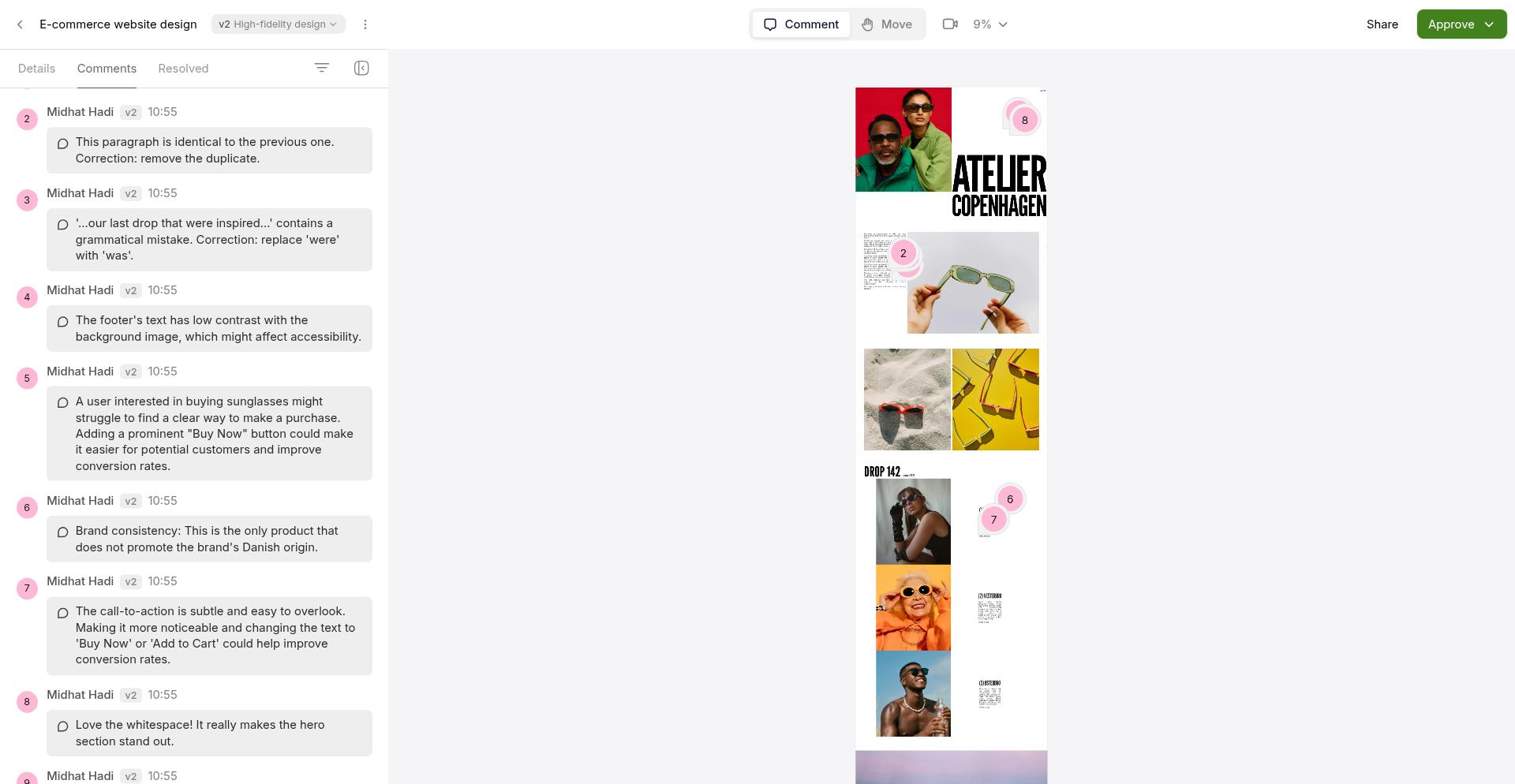
What Guests Can Do
View and comment on all tasks in the project they're invited to
Create and edit tasks (text-based task descriptions only)
Leave on-canvas comments by clicking anywhere on the creative work
Record video feedback (if you've enabled it)
View all versions and navigate through the project history
Reply to comments and participate in discussions
What Guests Cannot Do
Upload or add new creative assets
Create or delete versions
Access any other projects in your workspace
View workspace settings, billing, or team management
See your other clients' work or projects
Commenting and Feedback
When guests leave comments, the interface is straightforward. They click on the canvas, type their feedback, and the comment appears with a numbered pin showing exactly where they clicked.
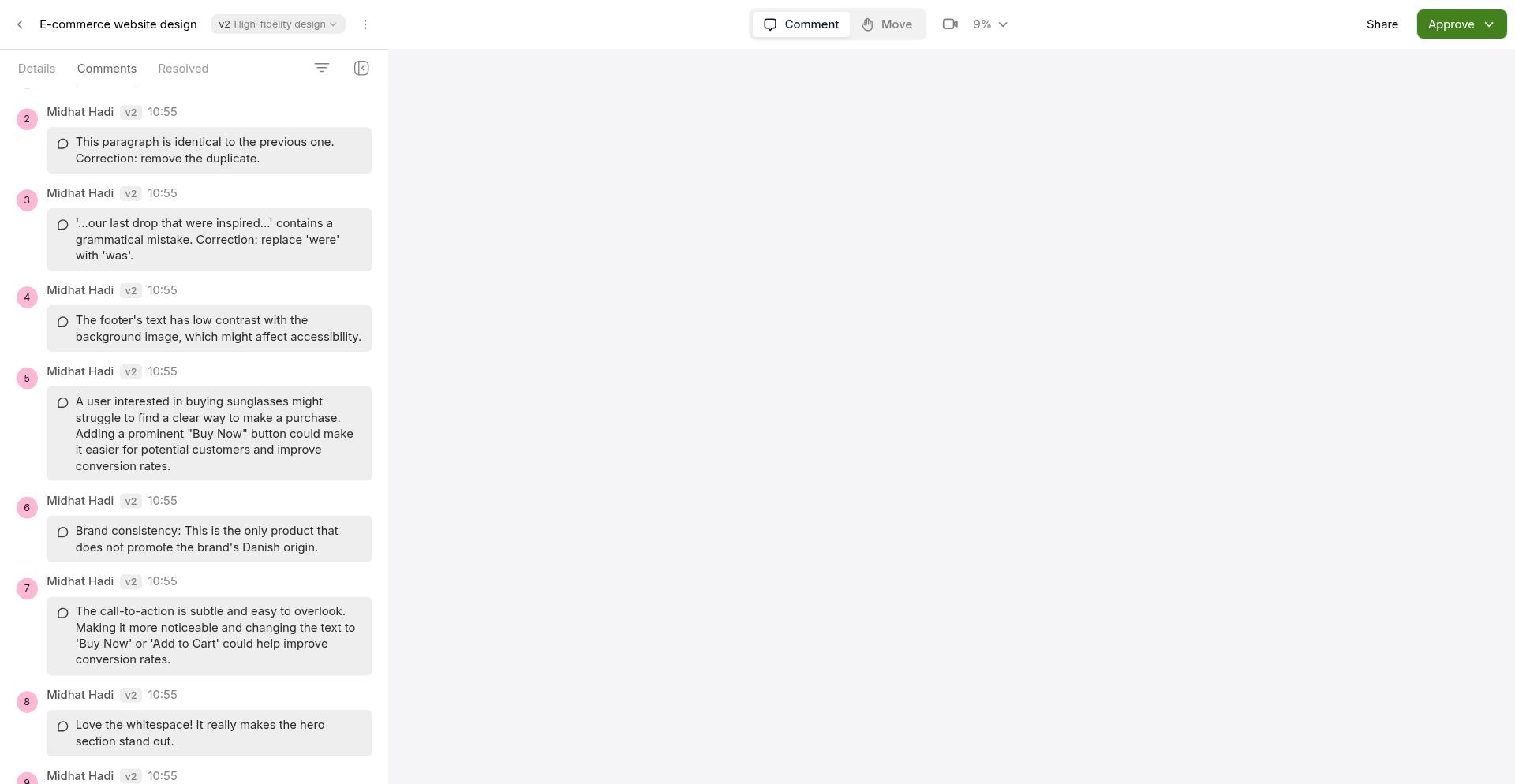
The first time a guest creates a comment, they'll be asked for their email. This ensures you know who left each comment and enables email notifications to keep conversations organized in Workflow instead of scattered across email threads.
How Task Assignment Works for Guests
You can assign specific tasks to guests within the project they have access to. When you assign a task to a guest, they'll be able to see it in their project view.
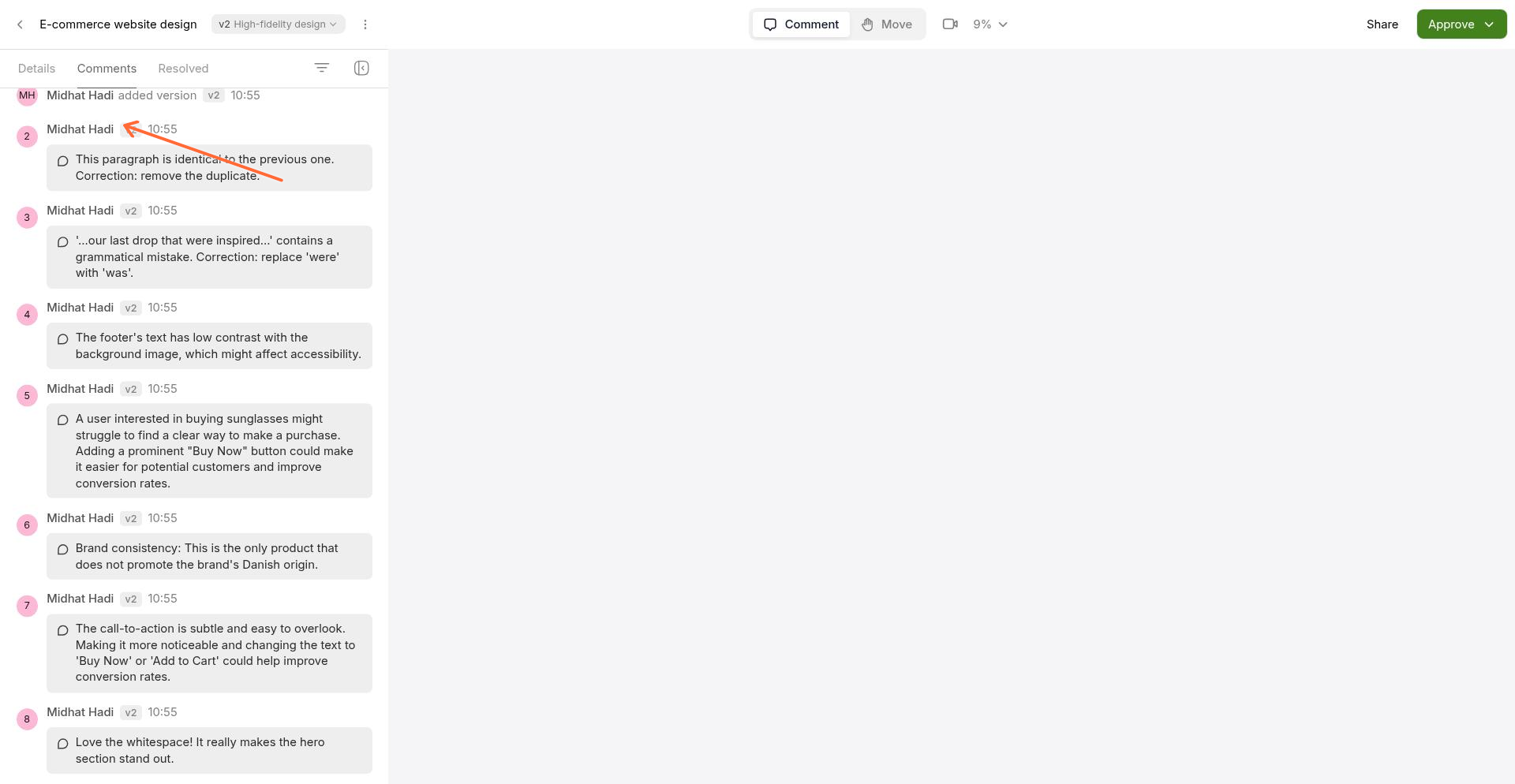
Guests invited to a project can see all tasks in that project, whether assigned to them or not. Task assignment helps organize work but doesn't restrict visibility within the project.
How to Assign Tasks to Guests
Open any task within that project
Use the assignee field to assign the task to the guest
The guest will see the task in their project view
Email Notifications Guests Receive
Guests receive email notifications to stay updated on project activity:
Invitation email when you first invite them to a project
Reply notifications when you respond to their comments
New version alerts when you upload a new version of the work
Sidebar messages when you add notes or screen recordings
If multiple notifications occur in a short time, they're batched together into a single email to prevent inbox overload.
Guest Access vs. Share Links vs. Task Assignment
Understanding the different ways to give clients access helps you choose the right approach:
Guest Invited to Project
Guest creates an account (via Google or email)
Access to all tasks and versions in that specific project
Can create and edit tasks, leave comments
Receives email notifications for project updates
Best for: Clients collaborating on an entire project
Share Link
No account required—just click the link
Access to one specific task only
Can view and comment on that task
Best for: Quick feedback on a single deliverable
Task Assignment
Guest must already be invited to the project
Helps organize which tasks each guest should focus on
Doesn't restrict access—guests still see all project tasks
Best for: Organizing work when multiple guests collaborate
Learn more about the difference between teammates, guests, and share links.
Mobile Experience
Guests can access Workflow on mobile devices to view comments and receive notifications, but there are limitations:
iOS: Cannot view creative assets (shows blank canvas with "Websites not supported on iOS mobile")
Android: Live sites are unsupported or unreliable
Video recording: Limited to Safari on iOS 14.5+ and Chrome on Android
Recommend that clients use desktop browsers for reviewing creative work and use mobile only for reading comments and notifications.
Read more about mobile browser support and limitations.
Need Help?
If you have questions about the guest experience or need help setting up client access, contact us at [email protected].