
The Difference Between Teammates, Guests, and Share Links
In Workflow, you can collaborate with others in several ways: by inviting creatives, teammates, guests, or sharing a task link. Each method grants different levels of access and is suitable for different collaboration scenarios.
When you create a Workflow workspace, you're automatically assigned as both an Owner and a Creative. Owners are billed as Creatives on paid plans.
Creatives
Creatives are users who can upload and manage creative assets in your workspace. They can add websites, images, videos, and other files, create new versions, and view all public projects.
Creatives are billed per user on paid plans ($16/month per Creative on annual billing, or $20/month on monthly billing). This is the role you'd assign to designers, developers, or anyone who needs to upload and manage work.
Creatives increase your bill. If someone only needs to review work and leave feedback, add them as a Teammate instead to save costs.
Creatives cannot manage team settings, billing, or delete the workspace — those are reserved for Owners.
Teammates
Teammates have access to all public projects within your workspace. They can view, edit, and create tasks in any project they join. However, unlike Creatives, they cannot upload creative assets or create new versions.
Teammates are always free and unlimited, making them ideal for project managers, stakeholders, or clients who need to review work and provide feedback without uploading files.
Learn more about teammates
Guests
Guests only have access to the specific Task or Project they've been invited to. They can view, edit, create tasks, and comment within that project, but they cannot access any other projects in your workspace.
Guests are perfect for collaborators who are only involved in a single project, such as freelancers or clients.
Learn more about guests
Share Links
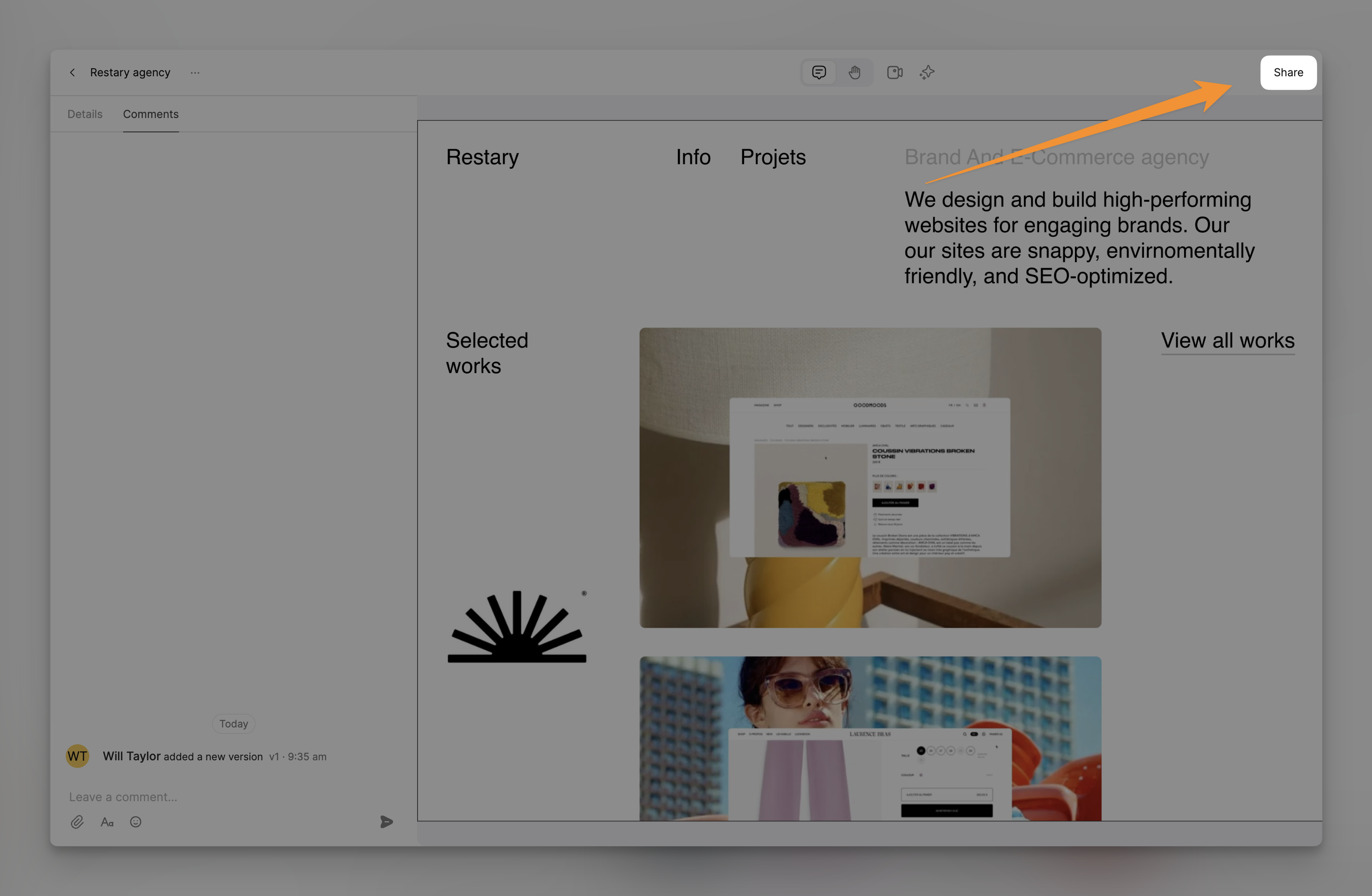
In addition to inviting teammates and guests, you can also share individual tasks using a share link. When you create a share link for a task, anyone with the link can view and comment on that specific task, but they won't have access to the rest of the project or workspace.
Share links are ideal for getting feedback or input on a particular task without granting access to the entire project.
Learn more about share links
Need Help?
If you have any issues with roles or need assistance, please contact us at [email protected]. We're happy to help!